Create Folder Structure And Configuration Files
Before we write the first line of code, we must arrange the
infrastructure of the extension. Beside the folder structure there are some
minimum needed configuration files counting. We put the unique identifier of
our extension (extension-key) as store_inventory, and thus
we specify at the same time the name of the extension as
Store Inventory.
Tip
The name of an extension is always written in UpperCamelCase (beginning with a capital letter, then upper and lower letters; no underscore), while the extension key may only contain small letters and underscore (lower_underscore). You will find an overview of the name conventions in appendix A, Coding Guidelines.
Extensions can be stored at different places in TYPO3. Locally
installed extensions are the rule. These are in the folder
typo3conf/ext/. System extensions are delivered with the
TYPO3-distribution and are in the folder typo3/sysext/.
Extbase or Fluid are examples of system extensions. The two paths are
below the installation folder of TYPO3, in which also lies the file
index.php.
Then, in the folder for local extensions
typo3conf/ext/ we create the folder
store_inventory. The name of this folder
must be written like the extension key and therefore in lower-case letters,
and where appropriate, with underscores. On the uppermost level lie the
folders Classes and Resources. The
folder Classes contains all PHP classes, with the exception of external PHP libraries. The folder
Resources contains two directories named Private and Public.
The folder Resources/Private/ contains subfolders like Templates, Layouts, Partials
and Language. These files can only be accessed through the file system.
The folder Resources/Public/ contains subfolders like Icons, Css, Js. These files can be accessed through the web browser.
Within the folder
Classes are the folders
Controller and
Domain. In our example, the folder
Controller contains only one class that will control
the entire process of listing creation later. The folder Domain again contains the two folders
Model and
Repository. Resulting from all this, the folder structure within the extension folder
inventory should look as in image 4-1.
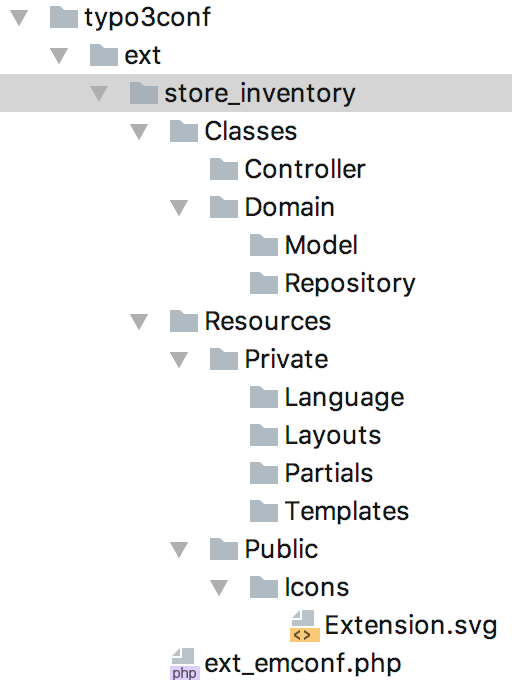
Figure 4-1: The standard directory structure with the important files for the extension manager
So that the extension can be loaded by TYPO3, we require two
configuration files. These are located in the extension's folder
store_inventory/ at the uppermost level. You can copy and
adapt these files from an existing extension. Later you will let them be
created by the extension Extension Builder.
The file ext_emconf.php contains the meta
information for the extension, e.g. the title, a description, the status,
the name of the author etc.. It does not differ to conventional extensions.
You find the complete documentation in the Core Api Reference
<?php

$EM_CONF[$_EXTKEY] = [
        'title' => 'Store Inventory',
        'description' => 'An extension to manage a stock.',
        'category' => 'plugin',
        'author' => 'John Doe',
        'author_company' => 'John Doe Inc.',
        'author_email' => 'john.doe@example.com',
        'state' => 'alpha',
        'clearCacheOnLoad' => true,
        'version' => '0.0.0',
        'constraints' => [
                'depends' => [
                        'typo3' => '8.7.0-8.9.99',
                ]
        ],
        'autoload' => [
                'psr-4' => [
                        'MyVendor\\StoreInventory\\' => 'Classes'
                ]
        ],
];
The extension icon was in previous versions of TYPO3 the file ext_icon.gif.
In TYPO3 8 you can choose between a PNG or SVG with a width and height of 256 pixels. The file must have the filename Extension.png or Extension.svg and must be stored in the directory Resources/Public/Icons/.
The icon appears in the extension manager and in the extension repository (TER).
If the extension has namespaced classes following the PSR-4 standard, then you
can add the autoload array to your ext_emconf.php file.
After the basic structure was constructed, the extension can already be shown in the extension manager and can be installed. But first we turn to our domain.